The opinionated, recommended integration path: an end-to-end FastAPI + OpenAI walkthrough that builds a memory-enabled chatbot from scratch.
This is the canonical end-to-end tutorial: read it top-to-bottom. It assumes you’ve finished the Quickstart and want to wire Synap into a real application.If you only need a snippet for a specific framework (Flask, Next.js, Django) or LLM provider (Anthropic, Vercel AI SDK), open Setup → Integration and copy the relevant tab instead.Prefer to explore the SDK in a browser before writing code? Use the live playground.Working in JavaScript or TypeScript? This walkthrough is Python and FastAPI end to end. For the same loop in Node, use the Express tab in Setup → Integration, which is complete and runnable, and read this page for the reasoning behind each step.
An instance created in the Dashboard (see Quickstart if you haven’t done this yet). For best results, upload a Use-Case Markdown file when creating your instance; see Use-Case Markdown for the template and authoring guide.
An OpenAI API key (or any LLM provider; we use OpenAI in this tutorial for simplicity). No paid key yet? Use Google Gemini’s free tier; see the Gemini snippet in Setup → Integration.
This tutorial assumes basic familiarity with Python async/await. If you are new to async Python, check out the asyncio documentation first.
1
Set Up Your Project
Create a new directory for your project and install the required dependencies:
mkdir synap-chatbot && cd synap-chatbotpython -m venv venvsource venv/bin/activate
synap-chatbot/
  startup.py      # SDK initialization and lifecycle
  main.py         # FastAPI application with chat endpoint
  .env            # Environment variables (not committed)
2
Configure Your Environment
Create a .env file with your credentials. You will need two values:
SYNAP_API_KEY: The API key generated for your instance (format: synap_<random>). Generate one from the Dashboard: open your instance, click Generate API Key, and copy the key; it is shown only once.
SYNAP_INSTANCE_ID: The instance id shown alongside the key in the Dashboard (format: inst_ plus 16 hex characters). Optional, since initialize() resolves it from the API key, but the Dashboard gives you both together so you may as well paste both.
Set the instance id as an environment variable, never as a constructor argument. SYNAP_INSTANCE_ID records which instance you are on and leaves the SDK keyed on your credential. Passing instance_id= to MaximemSynapSDK(...) makes the id the identity instead, so a second key used under it is silently discarded and key rotation stops taking effect. See Singleton Pattern.
Never commit .env files to version control. Add .env to your .gitignore immediately. In production, use a secrets manager (AWS Secrets Manager, GCP Secret Manager, HashiCorp Vault) instead of environment files.
3
Initialize the SDK
Create a module that manages the SDK lifecycle, imported by your application. The Python tab uses FastAPI; the JavaScript tabs use Express.
from maximem_synap import MaximemSynapSDK, SDKConfigimport ossdk = MaximemSynapSDK( api_key=os.environ["SYNAP_API_KEY"], config=SDKConfig( cache_backend="sqlite", log_level="INFO" ))async def init(): """Validate the API key, then open the real-time stream.""" await sdk.initialize() await sdk.instance.listen( on_reconnect=lambda attempt: print(f"Synap stream reconnected ({attempt})"), on_disconnect=lambda reason: print(f"Synap stream lost: {reason}"), )async def cleanup(): """Close the stream, then flush pending operations.""" await sdk.instance.stop_listening() await sdk.shutdown()
import { SynapClient } from '@maximem/synap-js-sdk';// No SDKConfig wrapper, and no cache_backend: the JS cache is in memory.export const sdk = new SynapClient(); // reads SYNAP_API_KEY from the environmentexport async function init() { // Validate the API key, then open the real-time stream. await sdk.initialize(); await sdk.instance.listen({ on_reconnect: (attempt) => console.log(`Synap stream reconnected (${attempt})`), on_disconnect: (reason) => console.log(`Synap stream lost: ${reason}`), });}export async function cleanup() { // Close the stream, then flush pending operations. await sdk.instance.stop_listening(); await sdk.shutdown();}
import { SynapClient } from '@maximem/synap-js-sdk';// No SDKConfig wrapper, and no cache_backend: the JS cache is in memory.export const sdk = new SynapClient(); // reads SYNAP_API_KEY from the environmentexport async function init(): Promise<void> { // Validate the API key, then open the real-time stream. await sdk.initialize(); await sdk.instance.listen({ on_reconnect: (attempt: number) => console.log(`Synap stream reconnected (${attempt})`), on_disconnect: (reason: string) => console.log(`Synap stream lost: ${reason}`), });}export async function cleanup(): Promise<void> { // Close the stream, then flush pending operations. await sdk.instance.stop_listening(); await sdk.shutdown();}
Key points about this setup:
sdk.instance.listen() opens one long-lived stream for the whole process. Your agent reports each turn on it, and Synap pushes anticipated context back so retrieval resolves locally. This is the Agent Integration.
cache_backend="sqlite" enables local caching for faster repeated retrievals.
log_level="INFO" is appropriate for development. Switch to "WARNING" or "ERROR" in production.
The sdk object is a module-level singleton. Import it from any module and it will reference the same initialized instance.
Open one stream per process, not one per user or request. Scope travels on each call instead. The callbacks each take one argument: on_reconnect receives the attempt count, on_disconnect the reason.
The API key is read fresh every time the SDK starts. Leave SYNAP_API_KEY in your .env (or secrets manager); the same key keeps working until you revoke it in the Dashboard.
4
Create the FastAPI Application with Lifespan
Now create the main.py file. Start with the application lifespan manager, which ensures the SDK initializes on startup and shuts down cleanly when the server stops.
import osfrom contextlib import asynccontextmanagerfrom fastapi import FastAPIfrom pydantic import BaseModelfrom openai import AsyncOpenAIfrom startup import sdk, init, cleanup# --- Lifespan Management ---@asynccontextmanagerasync def lifespan(app): """Initialize Synap and open the stream on startup; close both on exit.""" await init() print("Synap SDK initialized and listening. Ready to serve requests.") yield await cleanup() print("Synap SDK shut down cleanly.")app = FastAPI( title="Synap Chatbot", description="A memory-enabled chatbot powered by Synap", lifespan=lifespan)openai_client = AsyncOpenAI(api_key=os.environ.get("OPENAI_API_KEY"))# --- Request/Response Models ---class ChatRequest(BaseModel): message: str conversation_id: str user_id: str customer_id: str | None = None # B2B instances only; leave unset on B2Cclass ChatResponse(BaseModel): response: str memories_used: int
import express from 'express';import OpenAI from 'openai';import { sdk, init, cleanup } from './synap.mjs';const app = express();app.use(express.json());const openaiClient = new OpenAI({ apiKey: process.env.OPENAI_API_KEY });// --- Lifecycle ---// Express has no lifespan hook: initialize first, close on SIGTERM.await init();console.log('Synap SDK initialized and listening. Ready to serve requests.');const server = app.listen(8000);process.on('SIGTERM', async () => { server.close(); await cleanup(); console.log('Synap SDK shut down cleanly.'); process.exit(0);});// Request shape: { message, conversation_id, user_id, customer_id? }// customer_id is B2B only; leave it unset on B2C.
import express from 'express';import OpenAI from 'openai';import { sdk, init, cleanup } from './synap.js';const app = express();app.use(express.json());const openaiClient = new OpenAI({ apiKey: process.env.OPENAI_API_KEY });interface ChatRequest { message: string; conversation_id: string; user_id: string; /** B2B instances only; leave unset on B2C. */ customer_id?: string;}interface ChatResponse { response: string; memories_used: number;}// --- Lifecycle ---// Express has no lifespan hook: initialize first, close on SIGTERM.await init();console.log('Synap SDK initialized and listening. Ready to serve requests.');const server = app.listen(8000);process.on('SIGTERM', async () => { server.close(); await cleanup(); console.log('Synap SDK shut down cleanly.'); process.exit(0);});
The lifespan context manager is the recommended way to manage startup/shutdown in modern FastAPI applications (v0.95+). It replaces the older @app.on_event("startup") and @app.on_event("shutdown") hooks.
5
Build the Chat Endpoint
Add the chat endpoint to main.py. This endpoint performs five operations in sequence:
Report the incoming user message on the stream
Retrieve relevant memories from Synap
Build a system prompt enriched with memory context
Call the LLM with the enriched prompt
Report the assistant’s reply on the stream
Reporting each turn with send_message is what makes the conversation
retrievable: it registers the conversation and appends the turn to its
history, exactly as record_message does over REST. Context fetched by
conversation_id only returns turns that were reported, so an
unregistered conversation returns empty results by design.
@app.post("/chat", response_model=ChatResponse)async def chat(req: ChatRequest): # customer_id is required on a B2B instance and not accepted on a # B2C one, so forward it only when the caller supplied it. scope = {"customer_id": req.customer_id} if req.customer_id else {} # ------------------------------------------------------- # Step 1: Report the user's message (registers the conversation) # ------------------------------------------------------- await sdk.instance.send_message( content=req.message, role="user", event_type="user_message", conversation_id=req.conversation_id, user_id=req.user_id, **scope, ) # ------------------------------------------------------- # Step 2: Retrieve relevant memories for this conversation # ------------------------------------------------------- context = await sdk.conversation.context.fetch( conversation_id=req.conversation_id, search_query=[req.message], max_results=5, types=["facts", "preferences"], mode="fast" ) # ------------------------------------------------------- # Step 3: Build system prompt with memory context # ------------------------------------------------------- memory_lines = [] for fact in context.facts: memory_lines.append( f"- {fact.content} (confidence: {fact.confidence:.0%})" ) for pref in context.preferences: memory_lines.append(f"- User preference: {pref.content}") memory_block = "\n".join(memory_lines) if memory_lines else ( "No prior context available." ) system_prompt = f"""You are a helpful assistant with memory.Known information about this user:{memory_block}Use this context naturally in your responses. Do not explicitly mentionthat you are reading from a memory system, just be naturally informed.""" # ------------------------------------------------------- # Step 4: Call the LLM # ------------------------------------------------------- response = await openai_client.chat.completions.create( model="gpt-4o", messages=[ {"role": "system", "content": system_prompt}, {"role": "user", "content": req.message} ], temperature=0.7, max_tokens=1024 ) assistant_message = response.choices[0].message.content # ------------------------------------------------------- # Step 5: Report the assistant's reply # ------------------------------------------------------- # This completes the turn in the conversation's history and is what # pre-warms anticipation for the NEXT turn. There is no ingestion # call: both reported turns become long-term memory when this # conversation compacts. await sdk.instance.send_message( content=assistant_message, role="assistant", event_type="assistant_message", conversation_id=req.conversation_id, user_id=req.user_id, **scope, ) return ChatResponse( response=assistant_message, memories_used=len(memory_lines) )
app.post('/chat', async (req, res) => { const { message, conversation_id, user_id, customer_id } = req.body; // customer_id is required on a B2B instance and not accepted on a // B2C one, so forward it only when the caller supplied it. const scope = customer_id ? { customer_id } : {}; // ------------------------------------------------------- // Step 1: Report the user's message (registers the conversation) // ------------------------------------------------------- await sdk.instance.send_message({ content: message, role: 'user', event_type: 'user_message', conversation_id, user_id, ...scope, }); // ------------------------------------------------------- // Step 2: Retrieve relevant memories for this conversation // ------------------------------------------------------- const context = await sdk.conversation.context.fetch({ conversation_id, search_query: [message], max_results: 5, types: ['facts', 'preferences'], mode: 'fast', }); // ------------------------------------------------------- // Step 3: Build system prompt with memory context // ------------------------------------------------------- // Each collection is optional on the raw response, so default it. const memoryLines = []; for (const fact of context.facts ?? []) { memoryLines.push( `- ${fact.content} (confidence: ${((fact.confidence ?? 0) * 100).toFixed(0)}%)`, ); } for (const pref of context.preferences ?? []) { memoryLines.push(`- User preference: ${pref.content}`); } const memoryBlock = memoryLines.length ? memoryLines.join('\n') : 'No prior context available.'; const systemPrompt = `You are a helpful assistant with memory.Known information about this user:${memoryBlock}Use this context naturally in your responses. Do not explicitly mentionthat you are reading from a memory system, just be naturally informed.`; // ------------------------------------------------------- // Step 4: Call the LLM // ------------------------------------------------------- const response = await openaiClient.chat.completions.create({ model: 'gpt-4o', messages: [ { role: 'system', content: systemPrompt }, { role: 'user', content: message }, ], temperature: 0.7, max_tokens: 1024, }); const assistantMessage = response.choices[0]?.message.content ?? ''; // ------------------------------------------------------- // Step 5: Report the assistant's reply // ------------------------------------------------------- // This completes the turn in the conversation's history and is what // pre-warms anticipation for the NEXT turn. There is no ingestion // call: both reported turns become long-term memory when this // conversation compacts. await sdk.instance.send_message({ content: assistantMessage, role: 'assistant', event_type: 'assistant_message', conversation_id, user_id, ...scope, }); res.json({ response: assistantMessage, memories_used: memoryLines.length });});
app.post('/chat', async (req, res) => { const { message, conversation_id, user_id, customer_id } = req.body as ChatRequest; // customer_id is required on a B2B instance and not accepted on a // B2C one, so forward it only when the caller supplied it. const scope = customer_id ? { customer_id } : {}; // ------------------------------------------------------- // Step 1: Report the user's message (registers the conversation) // ------------------------------------------------------- await sdk.instance.send_message({ content: message, role: 'user', event_type: 'user_message', conversation_id, user_id, ...scope, }); // ------------------------------------------------------- // Step 2: Retrieve relevant memories for this conversation // ------------------------------------------------------- const context = await sdk.conversation.context.fetch({ conversation_id, search_query: [message], max_results: 5, types: ['facts', 'preferences'], mode: 'fast', }); // ------------------------------------------------------- // Step 3: Build system prompt with memory context // ------------------------------------------------------- // Each collection is optional on the raw response, so default it. const memoryLines: string[] = []; for (const fact of context.facts ?? []) { memoryLines.push( `- ${fact.content} (confidence: ${((fact.confidence ?? 0) * 100).toFixed(0)}%)`, ); } for (const pref of context.preferences ?? []) { memoryLines.push(`- User preference: ${pref.content}`); } const memoryBlock = memoryLines.length ? memoryLines.join('\n') : 'No prior context available.'; const systemPrompt = `You are a helpful assistant with memory.Known information about this user:${memoryBlock}Use this context naturally in your responses. Do not explicitly mentionthat you are reading from a memory system, just be naturally informed.`; // ------------------------------------------------------- // Step 4: Call the LLM // ------------------------------------------------------- const response = await openaiClient.chat.completions.create({ model: 'gpt-4o', messages: [ { role: 'system', content: systemPrompt }, { role: 'user', content: message }, ], temperature: 0.7, max_tokens: 1024, }); const assistantMessage = response.choices[0]?.message.content ?? ''; // ------------------------------------------------------- // Step 5: Report the assistant's reply // ------------------------------------------------------- // This completes the turn in the conversation's history and is what // pre-warms anticipation for the NEXT turn. There is no ingestion // call: both reported turns become long-term memory when this // conversation compacts. await sdk.instance.send_message({ content: assistantMessage, role: 'assistant', event_type: 'assistant_message', conversation_id, user_id, ...scope, }); res.json({ response: assistantMessage, memories_used: memoryLines.length });});
Let’s break down each step:
Step 1: Report the User Message
sdk.instance.send_message() publishes the turn on the open stream. Synap
appends it to the conversation’s rolling history and registers the
conversation under this conversation_id, the same effect
conversation.record_message() has over REST. That registration is what
later lets conversation.context.fetch(conversation_id=...) resolve scope
and return the conversation’s turns. Skip it and the first fetch for a
brand-new conversation_id comes back empty, by design.Reporting it also tells Synap what the agent is doing, so it can anticipate
what context to push next.
user_id is always required. On a B2B instance customer_id is
required as well, and if either is missing the turn is dropped
server-side with no error. On a B2C instance customer_id is
not accepted: sending it fails with HTTP 400, so pass user_id
alone. Never reuse the user identifier as the customer identifier.
This example forwards customer_id only when the caller supplied
one, so it stays correct on both shapes. GET /api/v1/auth/whoami
returns your instance’s user_context_isolation if you are unsure
which shape you are on.
Step 2: Memory Retrieval
The sdk.conversation.context.fetch() call searches Synap’s vector and graph stores for memories relevant to the user’s message. Key parameters:
search_query: A list of strings used for semantic search. Passing the user’s message ensures we find contextually relevant memories.
max_results=5: Limits context to the top 5 most relevant memories, keeping the prompt concise.
types=["facts", "preferences"]: Retrieves only facts and preferences. Other types include episodes, emotions, and temporal. Use all to retrieve every type.
mode="fast": Uses the fast retrieval path (lower latency). Use accurate when precision matters more; accurate adds LLM subquery decomposition + reranking on top of the same vector + graph search.
Step 3: Prompt Construction
The retrieved memories are formatted as bullet points and injected into the system prompt. This gives the LLM access to user-specific context without modifying the conversation history.The confidence score (e.g., 92%) is included to help the LLM weigh how certain each piece of information is. You can omit confidence scores if you prefer a cleaner prompt.
Step 4: LLM Call
A standard OpenAI chat completion call. The system prompt now contains personalized context, so the LLM can respond as if it “remembers” the user. This works with any LLM provider: replace the OpenAI call with your preferred provider.
Step 5: Report the Reply, and why there is no ingestion call
One write, two jobs. send_message(role="assistant", ...) completes the turn
in the conversation’s rolling history, so the next turn’s context.fetch
sees the full exchange, and it is the event that pre-warms anticipation for
the next turn, which is why it belongs after the LLM call, not before.Notice what is not here: memories.create(). Both reported turns become
long-term memory on their own, when this conversation compacts: at 3,000
tokens, 10 messages, or 5 minutes of inactivity. Synap promotes the raw turns
into the same ingestion pipeline memories.create() would have used.Add explicit ingestion only for content that is not a conversation turn
(documents, tickets, backfills) or that must be retrievable sooner than
compaction. Never for text you already reported; that extracts it twice.
See Agent Integration.
6
Add a Health Check Endpoint
Good practice for production deployments: add a health check that verifies the SDK is connected:
# Node 20.6+ reads the file directly; no dotenv needednode --env-file=.env server.mjs
npx tsx --env-file=.env server.ts
You should see output confirming the SDK has initialized:
INFO: Started server processSynap SDK initialized. Ready to serve requests.INFO: Application startup complete.INFO: Uvicorn running on http://127.0.0.1:8000
Now test with a few conversation turns:
# First message, no memories exist yet# conversation_id must be a UUID; generate one with `python -c "import uuid; print(uuid.uuid4())"`curl -X POST http://localhost:8000/chat \ -H "Content-Type: application/json" \ -d '{ "message": "Hi! I am planning a trip to Japan next month. Any tips?", "conversation_id": "3f6b1a2c-4d5e-6f7a-8b9c-0d1e2f3a4b5c", "user_id": "user_alice" }'
{ "response": "Japan is wonderful! What kind of experience are you looking for...", "memories_used": 0}
# Second message, Synap now has context from the first turn# Reuse the same UUID to keep both turns in the same conversation.curl -X POST http://localhost:8000/chat \ -H "Content-Type: application/json" \ -d '{ "message": "What should I pack?", "conversation_id": "3f6b1a2c-4d5e-6f7a-8b9c-0d1e2f3a4b5c", "user_id": "user_alice" }'
{ "response": "Since you're heading to Japan next month, here's what I'd recommend packing...", "memories_used": 2}
The second turn works because the first was reported with send_message: the exchange is already in the conversation’s history, so context.fetch returns it and the assistant naturally references the Japan trip. Had the turn never been reported, that fetch would come back empty by design.
Long-term memories take a few minutes to appear. Conversation continuity works immediately, as you just saw, but the durable, cross-conversation memories that make memories_used climb are created when the conversation compacts, which for a quiet conversation means about five minutes.To see it without waiting, force compaction once you have sent a few turns:
await sdk.conversation.context.compact( conversation_id="<your conversation id>", force=True, # compact even though it is under the threshold)
await sdk.conversation.context.compact({ conversation_id: '<your conversation id>', force: true, // compact even though it is under the threshold});
await sdk.conversation.context.compact({ conversation_id: '<your conversation id>', force: true, // compact even though it is under the threshold});
Give it a moment to process, then fetch again and memories_used will now be non-zero. In production you never call this; the thresholds and the idle timer handle it.
8
Verify in the Dashboard
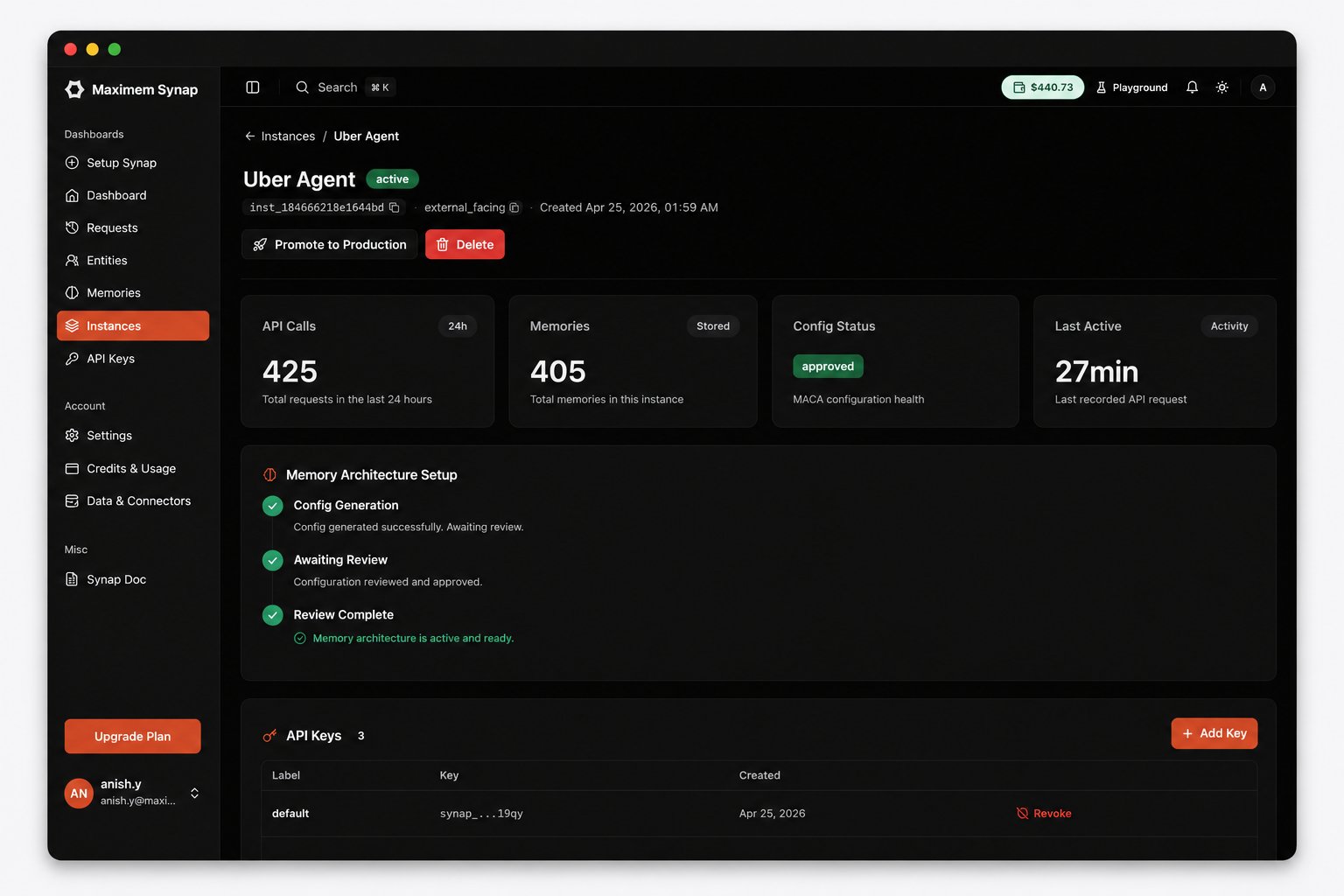
Open the Synap Dashboard and navigate to your instance. You should see:
API call counts reflecting your test requests
Memory counts showing extracted facts, preferences, and entities
Ingestion history with the conversation turns you sent
The instance detail page shows API activity and memory counts after your test requests.
Here is the final version of each file for reference. The Python tabs are FastAPI; the JavaScript tabs are Express.
from maximem_synap import MaximemSynapSDK, SDKConfigimport ossdk = MaximemSynapSDK( api_key=os.environ["SYNAP_API_KEY"], config=SDKConfig( cache_backend="sqlite", log_level="INFO" ))async def init(): """Validate the API key, then open the real-time stream.""" await sdk.initialize() await sdk.instance.listen( on_reconnect=lambda attempt: print(f"Synap stream reconnected ({attempt})"), on_disconnect=lambda reason: print(f"Synap stream lost: {reason}"), )async def cleanup(): """Close the stream, then flush pending operations.""" await sdk.instance.stop_listening() await sdk.shutdown()
import osfrom contextlib import asynccontextmanagerfrom fastapi import FastAPIfrom pydantic import BaseModelfrom openai import AsyncOpenAIfrom startup import sdk, init, cleanup@asynccontextmanagerasync def lifespan(app): await init() print("Synap SDK initialized. Ready to serve requests.") yield await cleanup() print("Synap SDK shut down cleanly.")app = FastAPI( title="Synap Chatbot", description="A memory-enabled chatbot powered by Synap", lifespan=lifespan)openai_client = AsyncOpenAI(api_key=os.environ.get("OPENAI_API_KEY"))class ChatRequest(BaseModel): message: str conversation_id: str user_id: str customer_id: str | None = None # B2B instances only; leave unset on B2Cclass ChatResponse(BaseModel): response: str memories_used: int@app.post("/chat", response_model=ChatResponse)async def chat(req: ChatRequest): # customer_id is required on a B2B instance and not accepted on a # B2C one, so forward it only when the caller supplied it. scope = {"customer_id": req.customer_id} if req.customer_id else {} # Report the user's message (registers the conversation) await sdk.instance.send_message( content=req.message, role="user", event_type="user_message", conversation_id=req.conversation_id, user_id=req.user_id, **scope, ) # Retrieve relevant memories context = await sdk.conversation.context.fetch( conversation_id=req.conversation_id, search_query=[req.message], max_results=5, types=["facts", "preferences"], mode="fast" ) # Build system prompt with memory context memory_lines = [] for fact in context.facts: memory_lines.append( f"- {fact.content} (confidence: {fact.confidence:.0%})" ) for pref in context.preferences: memory_lines.append(f"- User preference: {pref.content}") memory_block = "\n".join(memory_lines) if memory_lines else ( "No prior context available." ) system_prompt = f"""You are a helpful assistant with memory.Known information about this user:{memory_block}Use this context naturally in your responses. Do not explicitly mentionthat you are reading from a memory system, just be naturally informed.""" # Call the LLM response = await openai_client.chat.completions.create( model="gpt-4o", messages=[ {"role": "system", "content": system_prompt}, {"role": "user", "content": req.message} ], temperature=0.7, max_tokens=1024 ) assistant_message = response.choices[0].message.content # Report the assistant reply: completes the turn in conversation history # and pre-warms anticipation for the next turn. No ingestion call needed; # both turns become long-term memory when this conversation compacts. await sdk.instance.send_message( content=assistant_message, role="assistant", event_type="assistant_message", conversation_id=req.conversation_id, user_id=req.user_id, **scope, ) return ChatResponse( response=assistant_message, memories_used=len(memory_lines) )@app.get("/health")async def health(): try: stats = sdk.cache.stats() return { "status": "healthy", "synap_connected": True, "cache_entries": stats["total_entries"] } except Exception as e: return { "status": "degraded", "synap_connected": False, "error": str(e) }
import { SynapClient } from '@maximem/synap-js-sdk';// No SDKConfig wrapper, and no cache_backend: the JS cache is in memory.export const sdk = new SynapClient(); // reads SYNAP_API_KEY from the environmentexport async function init() { // Validate the API key, then open the real-time stream. await sdk.initialize(); await sdk.instance.listen({ on_reconnect: (attempt) => console.log(`Synap stream reconnected (${attempt})`), on_disconnect: (reason) => console.log(`Synap stream lost: ${reason}`), });}export async function cleanup() { // Close the stream, then flush pending operations. await sdk.instance.stop_listening(); await sdk.shutdown();}
import express from 'express';import OpenAI from 'openai';import { sdk, init, cleanup } from './synap.mjs';const app = express();app.use(express.json());const openaiClient = new OpenAI({ apiKey: process.env.OPENAI_API_KEY });// --- Lifecycle ---await init();console.log('Synap SDK initialized and listening. Ready to serve requests.');const server = app.listen(8000);process.on('SIGTERM', async () => { server.close(); await cleanup(); console.log('Synap SDK shut down cleanly.'); process.exit(0);});// --- Chat ---app.post('/chat', async (req, res) => { const { message, conversation_id, user_id, customer_id } = req.body; // customer_id is required on a B2B instance and not accepted on a // B2C one, so forward it only when the caller supplied it. const scope = customer_id ? { customer_id } : {}; // Step 1: report the user's message (registers the conversation) await sdk.instance.send_message({ content: message, role: 'user', event_type: 'user_message', conversation_id, user_id, ...scope, }); // Step 2: retrieve relevant memories for this conversation const context = await sdk.conversation.context.fetch({ conversation_id, search_query: [message], max_results: 5, types: ['facts', 'preferences'], mode: 'fast', }); // Step 3: build the system prompt. Each collection is optional on the // raw response, so default it before iterating. const memoryLines = []; for (const fact of context.facts ?? []) { memoryLines.push( `- ${fact.content} (confidence: ${((fact.confidence ?? 0) * 100).toFixed(0)}%)`, ); } for (const pref of context.preferences ?? []) { memoryLines.push(`- User preference: ${pref.content}`); } const memoryBlock = memoryLines.length ? memoryLines.join('\n') : 'No prior context available.'; const systemPrompt = `You are a helpful assistant with memory.Known information about this user:${memoryBlock}Use this context naturally in your responses. Do not explicitly mentionthat you are reading from a memory system, just be naturally informed.`; // Step 4: call the LLM const response = await openaiClient.chat.completions.create({ model: 'gpt-4o', messages: [ { role: 'system', content: systemPrompt }, { role: 'user', content: message }, ], temperature: 0.7, max_tokens: 1024, }); const assistantMessage = response.choices[0]?.message.content ?? ''; // Step 5: report the assistant's reply. There is no ingestion call: // both reported turns become long-term memory when this conversation // compacts. await sdk.instance.send_message({ content: assistantMessage, role: 'assistant', event_type: 'assistant_message', conversation_id, user_id, ...scope, }); res.json({ response: assistantMessage, memories_used: memoryLines.length });});// --- Health ---app.get('/health', (req, res) => { try { // The JS cache reports { bundles, items }; Python's SQLite backend // reports { entry_count, total_bytes, ... }. Different shapes. const stats = sdk.cache.stats(); res.json({ status: 'healthy', synap_connected: true, cache_bundles: stats.bundles, cache_items: stats.items, }); } catch (e) { res.json({ status: 'degraded', synap_connected: false, error: String(e) }); }});